.png)
.png)
Update (June 25, 2026): Salesforce has announced that enforcement for the high-assurance reporting session mandate is officially delayed to July 1st, 2026. Additionally, the scope has been significantly reduced: step-up identity verification will trigger exclusively when users are exporting or printing reports and dashboards (including embedded assets), allowing standard UI viewing to remain uninterrupted. Organizations can also configure specific IP restrictions to bypass this prompt entirely for trusted networks. For full deployment details, review the official Salesforce Knowledge Article.
Your Salesforce org holds your company’s absolute core: customer data, financial records, strategic pipelines, and proprietary operational workflows. Because threats have dramatically evolved—shifting toward AI-powered phishing, credential harvesting, and domain impersonation—the era of "optional" security controls is officially over.
Salesforce is officially out of polite reminders. They’ve switched from 'pretty please follow the rules' to hard-coded, non-negotiable lockout. This "secure-by-default" shift introduces a phased rollout designed to protect against AI-powered phishing, credential harvesting, email impersonation, and unauthorized data exfiltration.
Bottom Line: Action is Mandatory
This matters right now. If you do not adapt to these changes immediately, you, your team, and your integrations will be locked out of the system.
Whether you are a system administrator, a developer, or a standard employee, these mandatory changes will fundamentally alter your daily routine. Here is your definitive breakdown of what is changing, who is impacted, and exactly what you must do to avoid losing access to your environment.
The 3-Phase Security Roadmap
The security updates roll out in a strict sequence across 2026. Failing to configure your environment or train your users in time will result in silent operational failures, frozen APIs, or immediate user lockouts.
Phase 1: Email & Network Defense (April 2026)
- Email Domain Verification: Salesforce will only deliver user-authored emails from verified domains. Unverified domains fail silently or trigger catastrophic 550 delivery errors. This has been rolling out but there is a grace period that is about to end.
- High-Risk Connection Blocks: Enforcement permanently freezes API and Connected App traffic routing through anonymizing VPNs, proxies, or high-risk IP addresses.
- Extended Login Anomaly Detection: Real-time containment protocols automatically freeze suspicious and anomalous connection behavior.
Phase 2: Step-Up Authentication for Reports & TSPs (June 2026)
- Report & Dashboard Verification: To combat rapid data exfiltration, users must pass an extra identity check ("step-up authentication") to view or export reports every 2 hours. This is required even if they used MFA during initial login. See the Salesforce Step-Up Reporting Documentation for detailed framework specifications.
- TSP Management Restructuring: Only for Shield Users, modifying Transaction Security Policies (TSPs) now requires a dedicated security permission coupled with mandatory per-session step-up verification and some default default policies around blocking some report exports.
Phase 3: Strict Multi-Factor Authentication Standards (June / July 2026)
- Privileged Users (Admins, Customizers, Developers): Must authenticate exclusively via FIDO2/WebAuthn hardware keys or biometric passkeys. Traditional Time-Based One-Time Password (TOTP) mobile apps will be blocked for these elevated roles.
- All Internal Employee Users: Broad-scale technical MFA enforcement goes live. Accessing the platform without a registered verification factor becomes entirely impossible without direct administrator intervention.
Critical Timelines and Enforcement Dates
Salesforce is actively deploying hard blocks. July 1st is when a lot of the most impactful changes happen and a good milestone to keep in mind. If your team has not prepared by these specific milestone windows, users will be stopped cold at the login screen.
These dates shift often but so it is recommended to check the Salesforce Technical Enforcement Roadmap.
What Does All This Actually Mean?
Before we talk about configurations, let's translate the tech-speak into plain English so you know exactly what we're dealing with under the hood.
1. What is DKIM and Why Does It Matter?
DKIM (DomainKeys Identified Mail) setup is a method used to inform your company's internet domain name registrar (the provider handling your DNS records, like GoDaddy) that Salesforce is legally authorized to send emails on your behalf.
Think of it as ensuring you are who you say you are and own your email domain prior to sending emails from it and being able to include a signature in the email so the destination also knows this is a reliable email.
To set it up, your IT team must register a Salesforce code inside your DNS server. This creates a public baseline saying, "We trust the platform at salesforce.com to send emails using our domain name".
How it works in practice: When an employee sends an email to a client via Salesforce, the recipient's email server (like Gmail or Outlook) checks your domain's public DNS entry to match it against the signature Salesforce used to sign the message. If your DKIM setup is missing or incomplete, the recipient's system cannot verify the message is legitimate, resulting in the email being rejected or sent straight to spam. For configuration instructions, refer to the Salesforce Domain Authentication Guide.
2. What Are Passkeys and How Do They Work?
A passkey is a secure authentication method that allows your local device or password manager to generate a unique cryptographic secret that is never transmitted over the internet. Unlike standard passwords or time-based codes (TOTP), the private secret key never leaves your physical device. Even if Salesforce were somehow compromised, hackers would have no password database to steal because Salesforce only holds a public key.
How It Works
Think of it as a secure digital handshake. When you log in, Salesforce sends a unique "challenge" to your browser. Your device automatically signs this challenge using its hidden secret key and sends it back. Salesforce then verifies this signature against its public key to confirm it's actually you, and grants you access.
The entire process happens instantly behind the scenes, and your secret key never leaves your device.
Using Passkeys Across Your Devices
Because your passkey is tied to your physical hardware, how it works depends on where you choose to save it:
- Using a Cloud-Synced Account: If you use a password manager (like 1Password, Apple Passwords, or Google Password Manager) or a synced browser account, your passkeys automatically sync across all your devices. You can log into Salesforce seamlessly from your phone, laptop, or tablet.
- Using Device-Only Storage: If you save a passkey locally to a specific device’s hardware without syncing, that passkey only works on that specific machine. To log into Salesforce from a different device, you will need to register a separate passkey for it.
The primary operational benefit of passkeys shifts identity security from what you know (passwords that can be written down, phished, or leaked) to what you have (your specific hardware key or local device). Review setup mechanisms via the Salesforce Passwordless Login with Passkeys Documentation.
The Ultimate Checklist
IMPORTANT NOTE: Every Salesforce Org is unique. While your specific system configuration and security policies will ultimately drive how you need to set this up, the goal of this checklist is to provide the simplest path that should work for most teams.
Security updates can get tricky fast. If you hit a roadblock or still have questions about your configuration, feel free to reach out to us. We are here to help.
☐ 1. Email Domain & DKIM Validation
☐ Compile a comprehensive inventory of all domains used across Organization-Wide Email Addresses.
☐ Audit your DKIM Keys configuration to ensure an active, functioning DKIM key exists for every domain on your list.
☐ If keys are missing, generate them in Salesforce and collaborate with your IT team to publish the TXT records to your DNS provider using the Salesforce Domain Authentication Guide.
☐ Check the "Use a substitute email address for unverified domains" checkbox under Deliverability settings to ensure fallback delivery while your domains undergo verification. This ensures your emails still get sent but does it from a Salesforce email domain so do it at your own risk.
☐ 2. Step-Up Authentication for Reporting
☐ In a Sandbox environment, navigate to Identity Verification and change the security policy for Reports and Dashboards to "Require periodic step-up authentication".
☐ Test the configuration in that Sandbox environment by trying to run and export a report; verify that you receive an active email, SMS, or MFA validation prompt and are able to proceed.
Note: As of this write-up, there are active open issues that make certain features stop working after enabling this. Audit compatibility for users who utilize embedded dashboards on homepages, Lightning pages, report subscriptions, or "Login As" flows, as Salesforce has flagged known system issues with these features.
☐ If critical embedded assets break: File a deferral case with Salesforce Support containing your clear business justification. If it is up to Salesforce to approve this so ensure you are providing a good justification while you cannot have this enabled without certain issues fixed.
☐ Ensure you are communicating to your users (and training them): Explain that mid-session step-up prompts will occur every 2 hours, even if they initially signed in using MFA.
☐ 3. Salesforce Shield & Transaction Security Policies (TSPs)
☐ Search Setup for Transaction Security Policies to verify whether Shield Event Monitoring is active in your org.
☐ Review structural TSP governance parameters with your stakeholders using the Salesforce TSP Customization Guide to confirm exactly who has system access to modify policies.
☐ Determine if your security posture requires maintaining the auto-enabled ReportExport transaction policy.
☐ 4. Universal MFA Rollout (Standard Users)
☐ Check your SSO Settings to see if your organization routes logins through an external identity provider.
If you are using SSO
☐ Create a permission set containing the "Multi-Factor Authentication for User Interface Logins" user permission, assign it to a test user, and verify that login flows succeed without being prompted for secondary Salesforce registration.
☐ If the test user is prompted for registration: Work with your identity team to ensure your SAML assertion is actively passing the appropriate AMR/ACR signals outlined in the Salesforce User Interface Login Documentation. Your SSO identity provider must tell Salesforce that you used MFA when authenticating (e.g. when you logged in Microsoft Entra)
If you are not using SSO
☐ Build a phased rollout plan utilizing either the Salesforce Authenticator or a certified alternative (Google, Microsoft, Duo).
Note that regular users will also be able to use Passkeys when you enable them for Admins. Coordinate your passkey deployment plans with the MFA rollout plans so that they are either not using passkeys or know where to save them (Password manager, browser…).
☐ Test login mechanics across both standard desktop interfaces and the Salesforce mobile app.
☐ Deploy internal training materials, screenshots, and visual tip sheets based on the Salesforce Login Registration Experience Guide to explain the new registration and login workflows to your employees. Ensure to have communications going to all users ahead and after rolling this out to everyone
☐ Officially enable MFA for all users by adding to the permission set above. It’s recommended not to wait until the mandatory enforcement to do this so you can resolve issues or blockers without the users being forced to be in MFA
☐ 5. Privileged MFA Hardening (Admins & Developers)
☐ Run a query to isolate every active user holding elevated system permissions (Modify All Data, View All Data, Customize Application, Author Apex):
SELECT Id, Name, Username, Profile.Name FROM User WHERE IsActive = true AND Id IN (SELECT AssigneeId FROM PermissionSetAssignment WHERE (PermissionSet.PermissionsModifyAllData = true OR PermissionSet.PermissionsViewAllData = true OR PermissionSet.PermissionsCustomizeApplication = true OR PermissionSet.PermissionsAuthorApex = true))
☐ Deprecate Extraneous Access: Often times users have these permissions but do not need them. The easiest and most secure way to minimize the impact of this rollout is to strip elevated permissions from users who do not strictly require them, migrating them to custom, restrictive profiles to reduce your compliance footprint
If you are using SSO
☐ Work with your identity team to ensure your SAML assertion is actively passing the appropriate AMR/ACR signals outlined in the Salesforce User Interface Login Documentation.
☐ More than likely, your privileged users are not using a login method that satisfies Salesforce’s needs. Your SSO identity provider will need to change how your privileged users login to use a phishing resistant method and update the SSO configuration to tell Salesforce that you used it when authenticating
☐ Alternatively, you can also use passkeys on top of your SSO to login to Salesforce. See below how to set it up
☐ There isn’t an easy way to force a user to login with a built in method before this deadline so to test it ensure a test user can login with their newly updated SSO or register a passkey and use a SAML Tracer (Example) to see if the AMR/ACR signals are in the SAML assertion. You may need your IT team for this.
If you are not using SSO
☐ Enable Passkey Controls: Under Identity Verification, activate “Let users verify their identity with a built-in authenticator", “Show all verification method registration options instead of starting with built-in authenticators” and "Allow passwordless login with passkeys”
☐ Ensure your admins know how to use and set up passkeys in your company. This includes training them on how to use them and where to save them as well as how to have them sync across devices which may require you to provide either a password manager or a cloud synced account (See above the Using Passkeys Across Your Devices)
☐ Test login mechanics across both standard desktop interfaces and the Salesforce mobile app.
☐ Mitigate Mobile Discrepancies: Ensure all admins are utilizing the latest build of the Salesforce Mobile App that supports logging in using passkeys and that they can easily share their passkey with their mobile device. If passkey synchronization across devices fails due to ongoing application updates and mobile access for admins is required, request a temporary support exemption.
Note: We are assuming usage of passkeys here. They are widely compatible and do not require any extra hardware. If your company does not allow for it, you will need to use Phishing-Resistant Hardware: Configure physical tokens via the Salesforce Security Key Enablement Guide or register biometrics following the Salesforce Built-In Authenticator Documentation
☐ Ensure to have communications going to all admins and affected users ahead and after rolling this out.
☐ Add the affected users to a MFA permission set ("Multi-Factor Authentication for User Interface Logins" ) so they start registering their passkeys ahead of the deadline
6. System Recovery & Admin Lockout Mitigation
☐ Standardize Help Desk Routines: Document and test internal user recovery playbooks using the Salesforce MFA Access Recovery documentation
☐ Establish Emergency Channels: Set up dedicated communication methods (such as a private Slack channel or internal IT emergency address) to manage lockout reports safely.
☐ Understand Admin Master Fallbacks Ensure your administration team understands that if the entire primary admin group becomes completely locked out, you must log an external case with Salesforce Support to generate a one-time emergency access token.
☐ Prepare for a big increase in tickets: It is normal that during the transition a lot of users get locked out as they learn how to use the tools. Prepare your team to resolve an increased volume of access requests.
Prefer a hard copy?
Keep your rollout organized and share the steps with your team. Get the downloadable PDF here.
How Wise Wolves Helps You Navigate Your Transition
Trying to force massive security upgrades into tight windows is a major headache. It slows down your workflows, breaks your tools, and stresses out your team. At Wise Wolves, we can step in as an extension of your own tech team to make sure this overhaul happens smoothly, without disrupting your daily output.
We can take the entire burden off your shoulders. We have the expertise to protect your operations by actively mapping out privileged footprints, aligning complex SSO infrastructure metadata, and auditing domain compliance records to ensure your systems are fully prepared for mid-session step-up prompts. To fit your specific budget, capacity, and timeline, we offer two distinct paths forward:
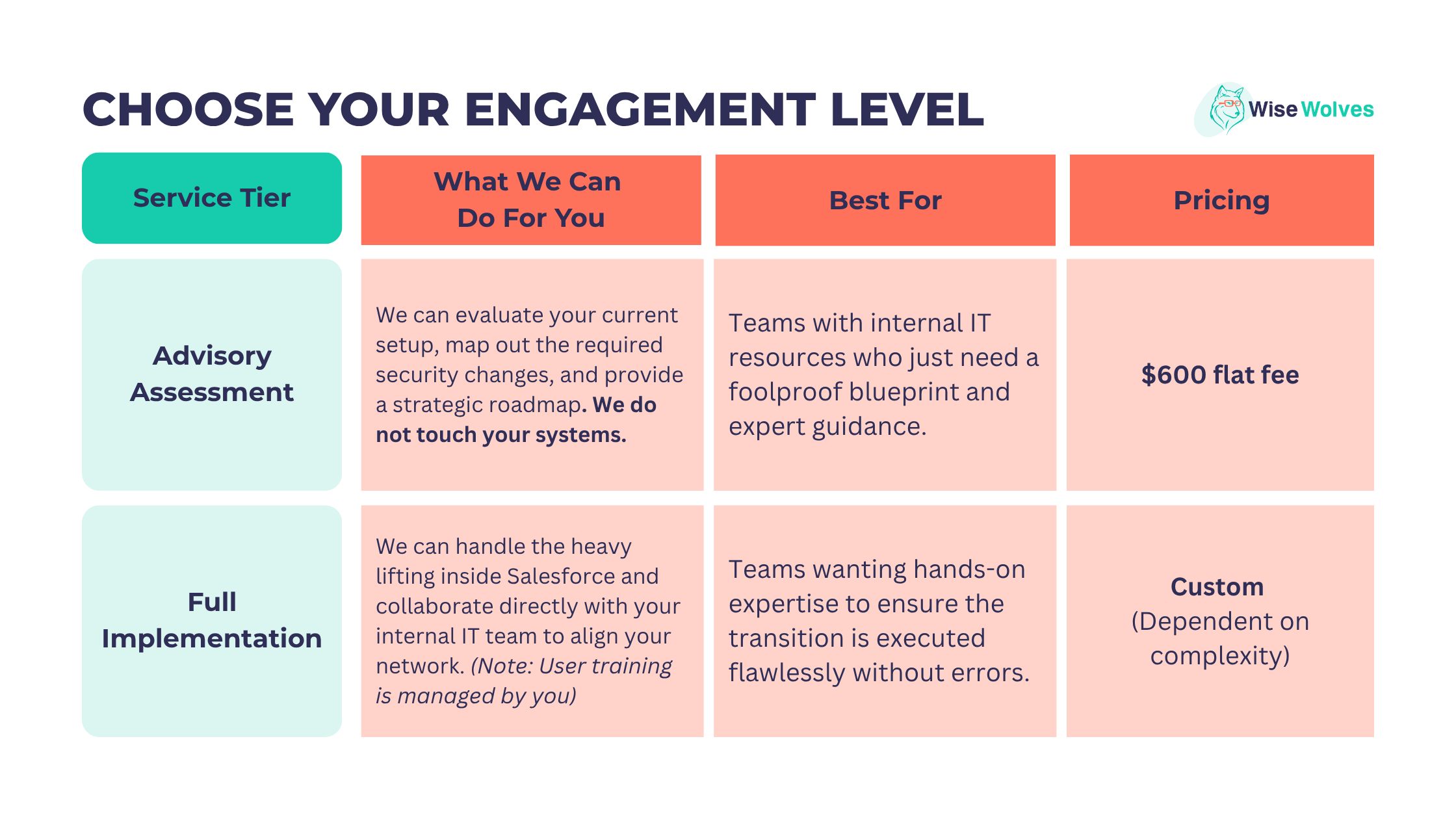
The enforcement windows are closing fast. Don’t wait until your admins and team are completely blocked from logging into production.
.png)


